

Aurora Client
Aurora is a Crystal PvP client featuring crystal prediction, customisable HUDs, cosmetics, and shareable profiles.
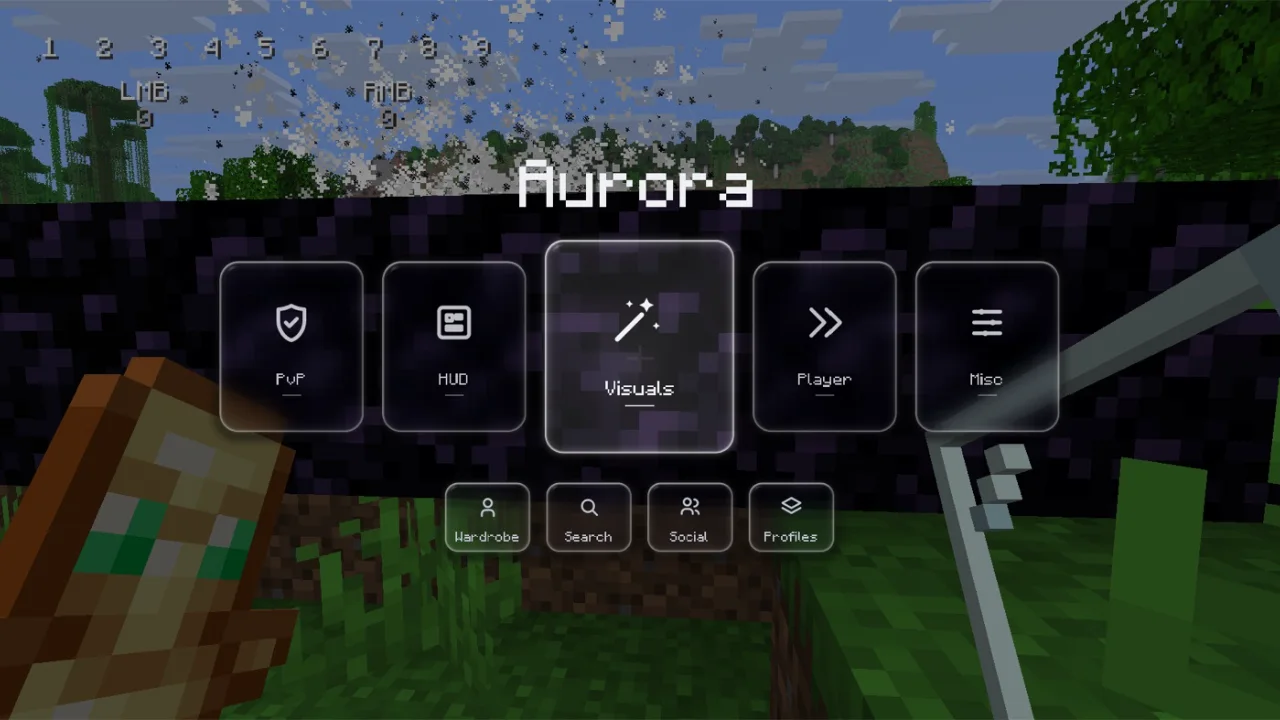
About Aurora Client
Aurora Client is a Minecraft client specifically designed for Crystal PvP, offering a clean interface, specialised combat tools, and extensive customisation options. Built for players who enjoy competitive crystal and anchor combat, Aurora focuses on precision, usability, and a polished in-game experience.
One of Aurora's standout features is its Crystal and Anchor Prediction, providing client-side placement predictions to help players make faster and more accurate combat decisions.
The client also includes a fully customisable HUD editor, allowing players to move and resize individual HUD elements to suit their preferences. Its built-in cosmetics and profile system add further personalisation.
Key Features
- Crystal & Anchor Prediction – Client-side placement prediction for crystal and anchor combat.
- Customisable HUD – Freely move and resize HUD elements using the built-in editor.
- Profiles – Save and share complete configurations using six-character codes.
- Cosmetics – Personalise your appearance with custom cosmetics.
- Friends System – Access your friends directly through the in-game menu.
- Clean Interface – Access modules, cosmetics, and friends through a modern menu.
- Fabric Compatibility – Works alongside Sodium and VulkanMod.
Aurora is ideal for Minecraft Crystal PvP players looking for a specialised combat client with useful prediction tools, clean visuals, and extensive customisation.
Supported Version: Minecraft 1.21.11 (Fabric).
Price: Free.
Features
- Crystal & Anchor Placement Prediction
- Customisable HUD & Clean Interface
- Shareable Profiles & Custom Cosmetics
How to install Aurora Client
5 steps. Takes about 3 minutes.
-
Step 1: Download Aurora Client
Choose the file that matches Minecraft 1.21.11. Only download from the buttons below.
-
Step 2: Install Fabric for Minecraft 1.21.11
Aurora Client runs on the Fabric mod loader. Get the official installer from fabricmc.net/use/installer, run it, pick Minecraft 1.21.11 and press Install.
Already have Fabric for this version? Skip this step.
-
Step 3: Open your mods folder
Windows%appdata%\.minecraft\modsPress Win + R, paste this, press Enter.macOS~/Library/Application Support/minecraft/modsIn Finder press Cmd + Shift + G and paste this.Linux~/.minecraft/modsOpen it in your file manager or terminal.If there is no
modsfolder yet, create one with exactly that name. -
Step 4: Move the files into the mods folder
Drag the
.jarfile you downloaded into themodsfolder. Do not unzip it.Remove older versions of Aurora Client from the folder so they do not clash.
-
Step 5: Launch Minecraft with the Fabric profile
Open the Minecraft Launcher, pick the Fabric profile in the bottom-left dropdown and press Play.
Most clients open their menu with Right Shift. Check the description above if it is different.
Stuck? See the troubleshooting guide.